
Find and fix filename incompatibilities across platforms, filesystems, and cloud services.
Every filesystem and operating system enforces different rules for filenames. A colon is illegal on Windows but valid on macOS. A path that fits within macOS's 1,024-byte limit may exceed Windows' 260-character default. Linux is case-sensitive; NTFS and most SMB shares are not. Cloud services like OneDrive, SharePoint, and Google Drive add their own restrictions — depth limits, character blocklists, and path length caps.
When files move between platforms — via shared NAS storage, cloud sync, archive migration, or deliverable handoff — these incompatibilities surface as silent corruption, broken links, or outright access failures. NameCheck scans your directory tree against the rules of your target destination and shows every conflict before it becomes a production problem.
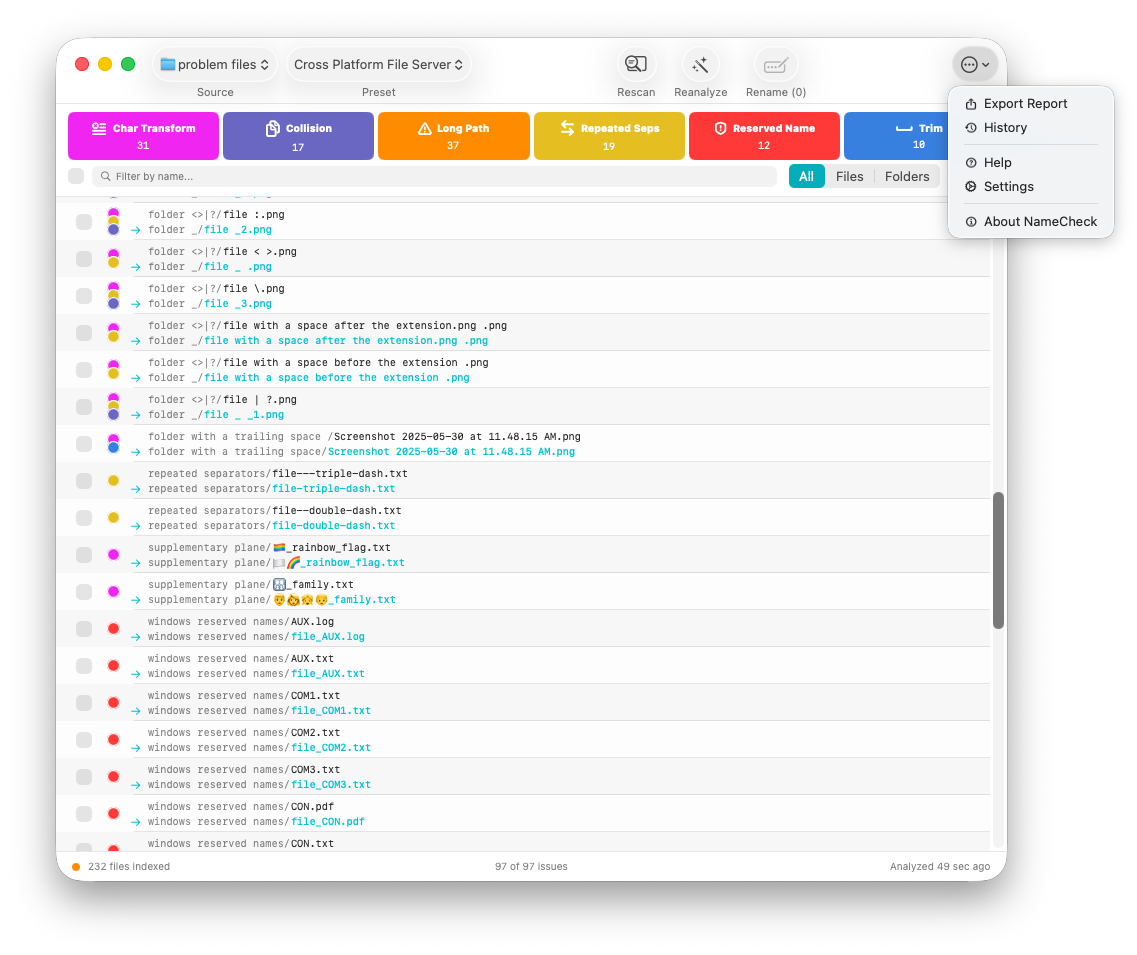
Main window showing scan results with color-coded issue badges, proposed renames, and the More menu with Export, History, and Settings.
Presets define the complete set of rules NameCheck uses to analyze filenames: target filesystem constraints, OS restrictions, encoding mode, length limits, and character substitution rules. NameCheck ships with two built-in presets and supports unlimited custom presets.
The default preset. Targets SMB filesystems with Windows, macOS, and Linux client restrictions combined. Case-insensitive, full Unicode, removes trailing spaces and periods, collapses repeated separators. Suitable for most NAS and shared storage environments.
Maximum portability for shell scripts and command-line tools. ASCII-only encoding with POSIX Portable character set. Strips leading spaces, hyphens, and hash characters. Use this when files will be processed by shell scripts or legacy systems.
The Advanced Settings panel provides two convenience pickers that load filesystem and OS constraints into the current preset:
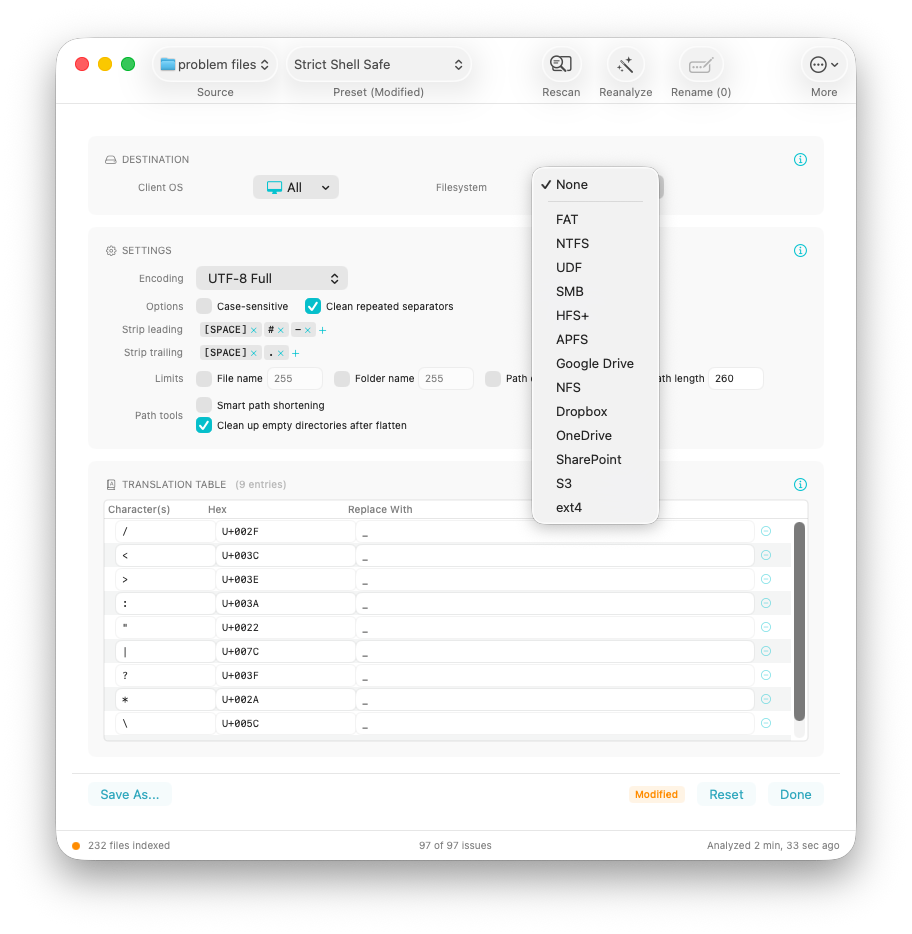
Advanced settings panel with Client OS and Filesystem pickers, encoding options, length limits, and editable character translation table.
Customize any setting — encoding, length limits, character substitutions, stripping rules — then click Save As to create a named preset. Custom presets appear in the toolbar picker alongside the built-in presets. Built-in presets cannot be modified directly; save a copy first.
NameCheck detects 11 types of filename compatibility issues. Each type has a unique color badge in the results list, and you can filter results by clicking any badge in the badge bar.
Illegal characters replaced per filesystem/OS rules (e.g. colon replaced with underscore for Windows compatibility).
Characters stripped due to encoding downgrade (e.g. emoji removed when targeting UTF-8 Basic).
Filename exceeds the target filesystem's byte limit (typically 255 bytes for most filesystems, 400 bytes for OneDrive/SharePoint).
Directory name exceeds the maximum allowed length.
Full path exceeds the target's maximum path length (e.g. 260 chars on Windows, 1,024 on macOS, 400 on SharePoint).
Folder nesting exceeds the maximum depth limit (e.g. 20 levels for Google Drive).
Filename matches a name reserved by the target OS (e.g. CON, PRN, AUX, NUL, COM1–COM9, LPT1–LPT9 on Windows).
Two files would have identical names after transformation — a naming conflict that must be resolved manually or with unique suffixes.
Leading or trailing spaces and periods removed. These characters cause widespread problems on Windows and in cloud sync clients.
Multiple consecutive separators (underscores, hyphens, periods) collapsed to a single character for cleaner filenames.
The issue cannot be automatically fixed (e.g. no valid characters remain after encoding). These files are flagged with a warning and require manual intervention.
Click Advanced in the preset picker to open the full settings panel. Settings are organized into three cards: Destination Capabilities, Preferences, and Translation Table.
The pickers and limits in this card describe what your destination physically supports. Selecting an OS or filesystem loads its constraints — encoding, length limits, reserved names, and the translation table — automatically. You can override any of them if your situation differs from the defaults.
Your transformation choices. These persist across destination changes — the destination pickers do not touch them.
. > - > _ > space, so a_._b →
a.b and consecutive spaces collapse to one).The character translation table defines how illegal characters are replaced during renaming. Each row maps a source character to its replacement. You can add, edit, or remove entries. The table is auto-populated based on your destination selection but can be customized.
The encoding setting controls how Unicode characters are handled during analysis and renaming:
Most restrictive. Transliterates international characters to 7-bit ASCII (e.g. é → e, ü → u). Only characters 0–127 are allowed. Best for maximum shell script and legacy system compatibility.
Allows all Basic Multilingual Plane characters but strips emoji and supplementary plane characters (mathematical symbols, historic scripts). Use for systems without emoji support.
Full Unicode with no normalization. Files that aren't renamed keep their exact on-disk bytes. Files renamed for other reasons are written in NFD (decomposed) form — standard macOS behavior.
Full Unicode with active NFC (precomposed) normalization. NFC is the standard for web content, most network protocols, and Windows/Linux systems. Recommended for cross-platform workflows.
Files marked as unresolvable (red warning icon) cannot be renamed automatically and require manual attention.
Every rename operation is recorded in the History panel (accessible from the More menu in the toolbar). Each history entry shows the date, operation type, affected file count, and source folder.
Click Undo on any history entry to reverse the rename and restore original filenames. You can also view the full report or export it from the history panel.
NameCheck renames files using POSIX rename(2) with raw UTF-8
bytes, bypassing Foundation's automatic NFD decomposition when NFC encoding
is selected. Files are renamed before directories, processing deepest paths
first to avoid breaking parent paths. When a standard rename fails due to
permissions, NameCheck can retry via the privileged helper if enabled.
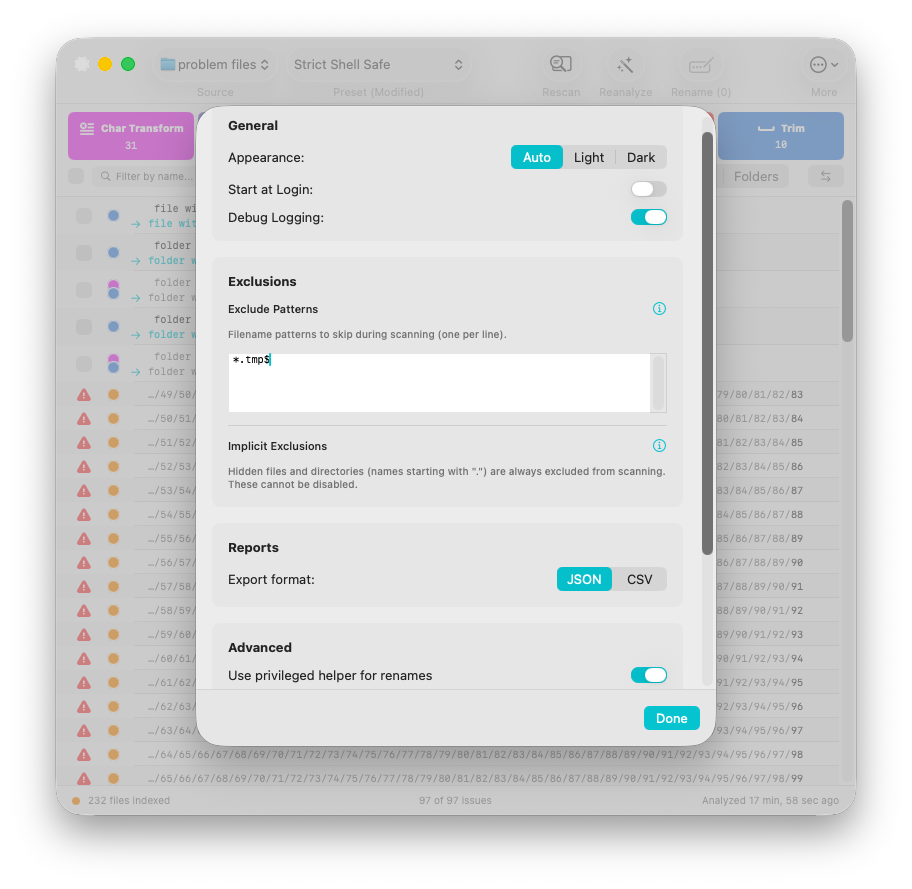
Settings — exclusion patterns, implicit exclusions, and privileged helper toggle.
The following items are always excluded from scanning, regardless of exclude patterns:
These items are not analyzed and will not appear in the issues list. This protects system metadata, application bundles, and document packages from being modified.
Define patterns to skip specific files or directories during scanning. Patterns match against filenames only, not full paths. Matching is case-insensitive. One pattern per line.
* matches any
characters, ? matches a single character/^~\$.*\.docx$/
Examples: *.tmp, *.bak,
node_modules, __pycache__,
Thumbs.db, backup_?
When a rename fails due to file permissions, NameCheck can retry using a privileged helper daemon running as root. This allows renaming files outside your home directory, on shared volumes, or in other restricted locations.
The status indicator in Settings shows green when the helper is running and communicating, or orange when approval is pending.
NameCheck can export scan results and rename reports in two formats. Choose the format from the save panel each time you export:
Structured report with scan root, timestamp, total issues, and per-file details including path, issue types, proposed rename, and timestamps. Suitable for programmatic processing or integration with other tools.
Tabular format with columns for path, issue count, issue types, proposed rename, and timestamps. Opens directly in spreadsheet applications for review or filtering.
After each batch rename, NameCheck displays a report with four tabs:
Enable the privileged helper in Settings → Advanced. Without the helper, NameCheck can only rename files within your home directory and user-accessible locations.
This is expected macOS behavior. macOS decomposes all filenames to NFD on any move, copy, or rename through standard system APIs. Files renamed by NameCheck in NFC mode will revert if subsequently touched by Finder or Terminal. NFC mode is best for files being transferred directly to non-macOS systems.
If the file index becomes inconsistent or you want to start fresh, use Reset Database in Settings → Advanced. This clears all scanned file records and requires a full rescan. Your preset configuration and preferences are preserved.
Enable Debug Logging in Settings → General for verbose diagnostic output. Logs include scan progress, analysis timing, rename results, and error details.