
Orchestrate multiple watchfolder encoders to scale proxy generation across your existing hardware.
Proximate automates a three-stage pipeline:
This lets you distribute encoding work across multiple instances of Adobe Media Encoder, Blackmagic Proxy Generator, or any other watchfolder-capable encoder — on the same machine or across your network.
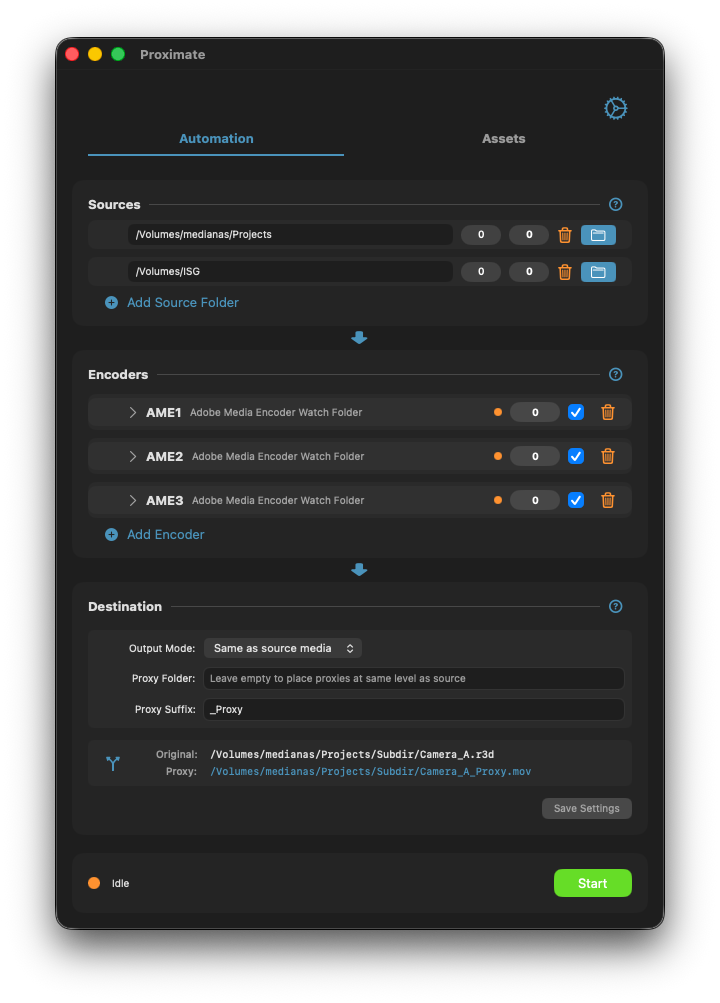
The Automation tab shows the full pipeline: source folders at the top, encoder instances in the middle, and destination configuration at the bottom with a live path preview.
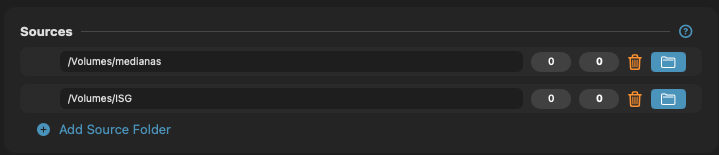
Multiple source folders can monitor different volumes or directory trees simultaneously.
Source folders are monitored for media files that match the file extensions specified in your encoders. You can add multiple source folders spanning local drives and network volumes.
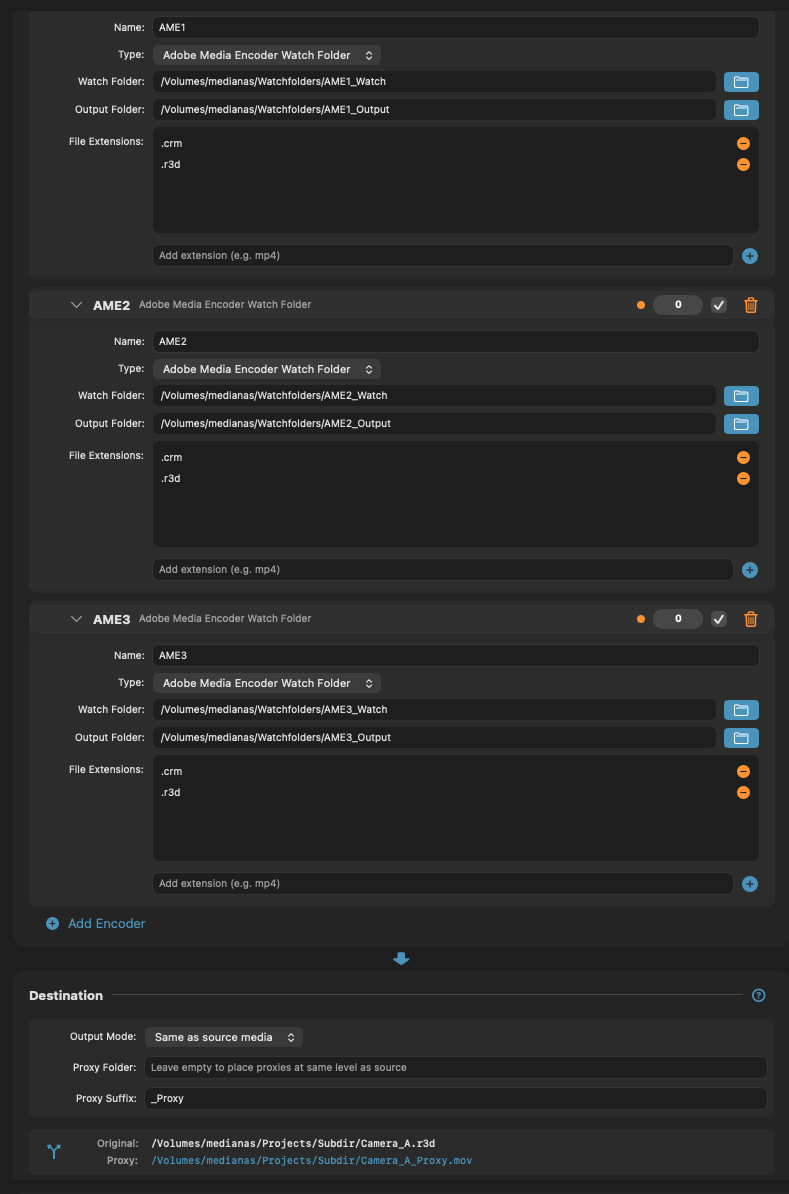
Three AME encoder instances, each with its own watch folder and output folder. File extensions are configured per encoder.
The most common configuration. Set up an AME watch folder preset with your desired encoding settings, then point Proximate to AME's watch and output folders. Default extensions: .crm, .r3d
Blackmagic's free proxy generator for BRAW and other camera formats. Default extensions: .braw, .crm, .r3d, .nev
Any other encoder that monitors a folder for input and writes output to another folder. Default extensions: .braw, .crm, .r3d, .nev
Add as many encoder instances as you have available. Each instance needs its own watch folder and output folder. Proximate distributes incoming files across all enabled encoders. You can mix encoder types — for example, route BRAW files to Blackmagic Proxy Generator and R3D files to Adobe Media Encoder.
The destination configuration controls where completed proxies are placed and how they are named. Proximate offers three output modes, each suited to different NLE and MAM workflows:
Proxies are placed relative to the source file's location. You can specify a proxy subfolder (e.g. "Proxies"), a proxy suffix (e.g. "_Proxy"), or both. At least one must be specified to distinguish proxies from source files.
The full source directory structure is mirrored under a different root folder. This preserves the relative path hierarchy while placing proxies on a different volume or in a different location. Useful for MAM systems that expect proxies in a parallel tree.
All proxies are placed into a single flat folder regardless of where the source files are located. Simplest configuration, but risks filename collisions if source files in different directories share the same name.
The destination section includes a live path preview showing exactly where a proxy will be placed based on your current settings. This updates as you change the output mode, proxy folder, and suffix.
The following examples show how to configure Proximate's destination settings
for common production tools. In each case, the source file is
/Volumes/medianas/Subdir/Camera_A.r3d.
Iconik expects edit proxies alongside source media with an _editproxy
suffix and no subfolder.
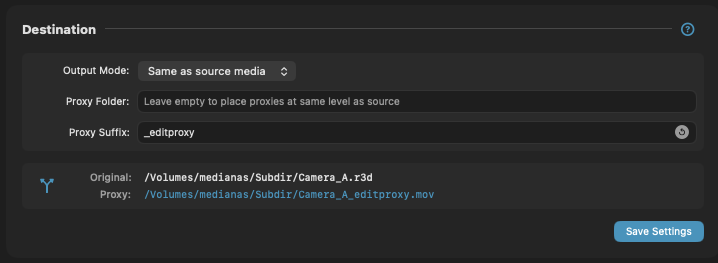
Iconik configuration — Same as source mode, no proxy folder, _editproxy suffix. Result: Camera_A_editproxy.mov next to source.
_editproxyCatDV typically expects proxies in a parallel directory tree under a different root, with the same filename as the source (no suffix).
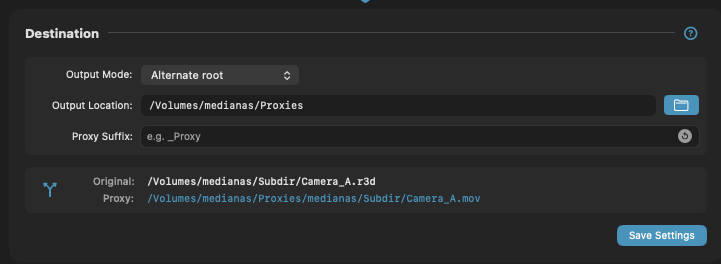
CatDV configuration — Alternate root mode mirroring the source tree under /Volumes/medianas/Proxies, no suffix. Result: /Volumes/medianas/Proxies/medianas/Subdir/Camera_A.mov
/Volumes/medianas/Proxies
Premiere Pro's proxy workflow expects proxies in a subfolder named
"Proxies" with a _Proxy suffix, relative to the source media.
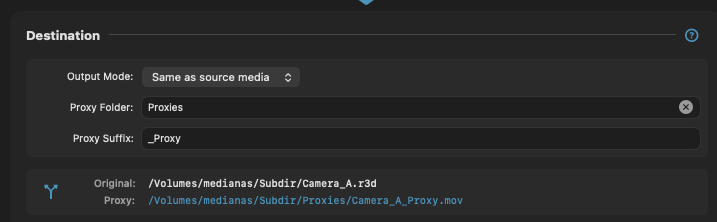
Premiere configuration — Same as source mode, "Proxies" subfolder, _Proxy suffix. Result: /Volumes/medianas/Subdir/Proxies/Camera_A_Proxy.mov
Proxies_ProxyWhen collecting proxies from multiple distributed source locations into a single centralized folder — for example, coalescing proxies from several camera offload points into one shared proxy library.
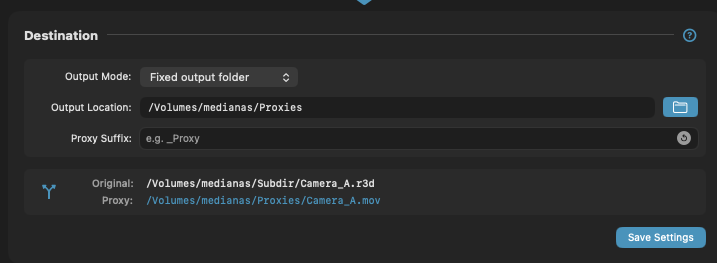
Collect configuration — Fixed output folder mode, all proxies collected into /Volumes/medianas/Proxies. Add a suffix if your workflow requires it.
/Volumes/medianas/Proxies_Proxy
or empty)When the same source content exists in multiple locations, Proximate detects duplicates using content-based hashing — not just filenames. The same file with different names in different folders is correctly identified as a duplicate.
Only creates a proxy for the first discovered instance. Fastest processing, lowest storage usage. Use when you don't need proxies at every source location.
Creates a separate proxy file for each duplicate source location. Each location gets its own independent proxy. Uses more storage but ensures every source path has a matching proxy.
Creates symbolic links at duplicate locations pointing to the original proxy. Saves disk space while providing access from all source locations. Best balance of coverage and storage efficiency.
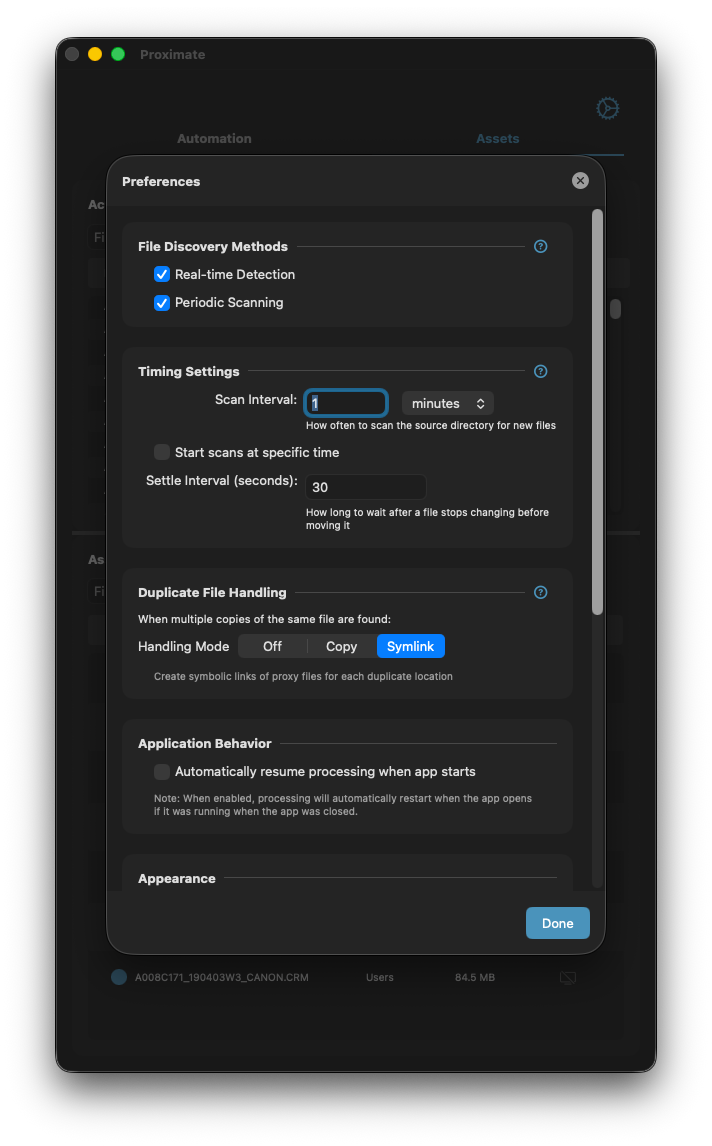
Preferences panel with file discovery methods, timing configuration, duplicate handling mode, and application behavior options.
Files are detected immediately when added or modified. Very low CPU when idle. May not work reliably on some network volumes.
Scans source folders at the configured interval. Works reliably on all filesystems including network drives. Acts as a safety net to catch files that FSEvents might miss.
Both methods can be enabled simultaneously (recommended for mixed local/network workflows). At least one method must be enabled.
Automatically resume processing when app starts: when enabled, Proximate restarts the processing pipeline on launch if it was running when the app was last closed.
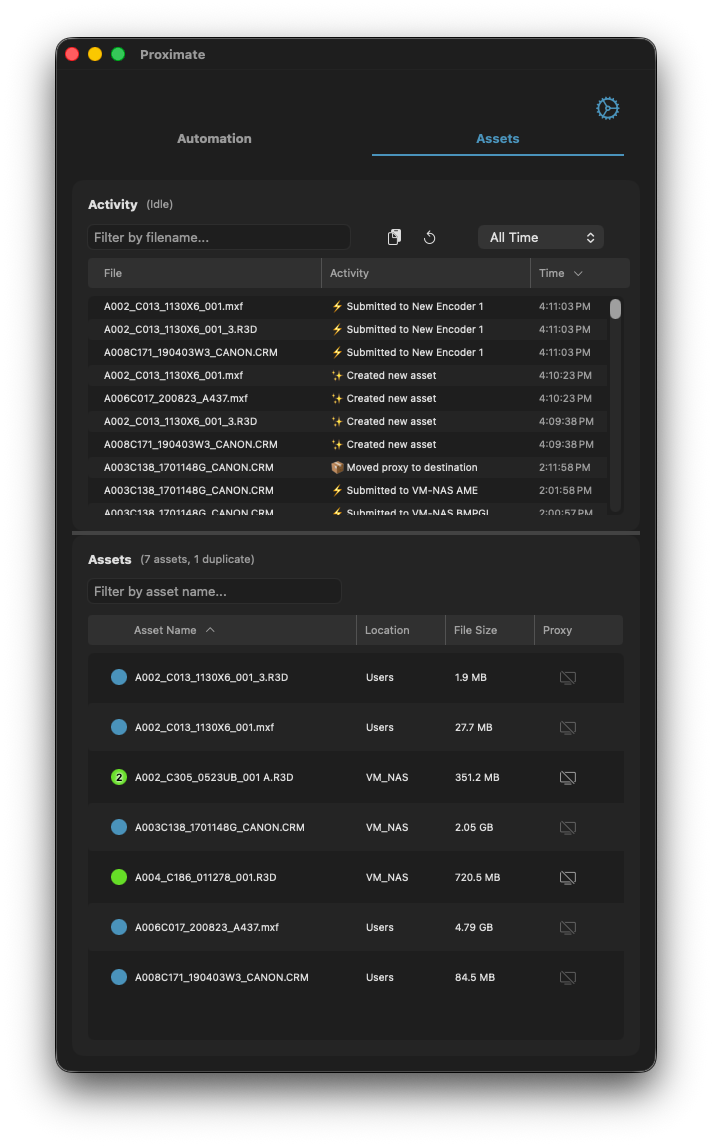
The Assets tab shows a real-time activity feed of processing events and a searchable asset database with codec details and proxy status.
The top section shows a live feed of processing events: new assets created, files submitted to encoders, proxies found and moved to destination, and any processing errors. Each entry includes the filename, event type, and timestamp. Use the time filter to narrow the view to recent activity.
The bottom section lists all tracked assets with their name, source location, file size, and proxy status. Assets with confirmed proxies show a green indicator; pending assets show orange. Duplicates detected across multiple locations are grouped under the same asset entry.
The database is disposable — it tracks processing state but your original files are never affected. Use Reset Database in Settings to clear all history and force reprocessing on the next scan.
The most common cause is an audio channel mismatch between the AME preset and the source media. If your preset expects stereo audio but the source has 4 or 8 channels (or vice versa), AME may fail silently or produce a proxy with no audio. Check the AME preset's audio channel configuration and ensure it matches the source media format.
Proximate tracks processed files in its database. If files are being reprocessed unexpectedly:
Enable Debug level logging in Settings for verbose diagnostic
output covering file discovery, hash calculations, encoder submissions, and
proxy delivery. Logs are written to
~/Library/Logs/daveco/proximate.log.