

v1.0 · macOS 13 Ventura or later · Apple Silicon & Intel
macOS has no built-in way to persistently map network shares. When your Mac sleeps, changes networks, or the server reboots, your mounted shares silently disconnect. For anyone working from shared storage — edit suites, VFX pipelines, post houses — a dropped mount means stopped work, broken media links, and lost time.
Finder's "Connect to Server" is a manual, one-shot action. Login items can mount shares
at startup, but they won't reconnect after an interruption. And macOS hides the SMB
configuration options that matter most for performance and compatibility — protocol
version, packet signing, multichannel, and port selection — behind a config file
(nsmb.conf) that most users don't know exists.
Remount solves both problems: it keeps your shares connected automatically, and it exposes the advanced SMB settings that macOS buries — all from a lightweight menu bar interface.
After installation, Remount lives in your menu bar. Click the icon to see your shares and their connection status at a glance.
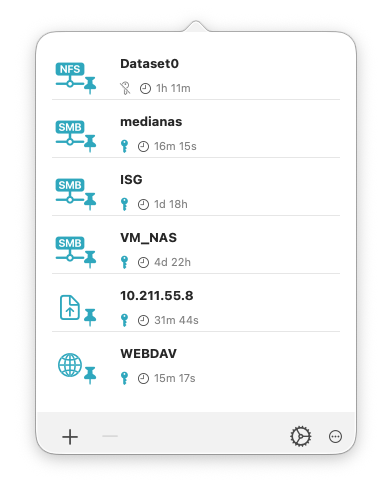
The menu bar popover shows all configured shares, their mount status, uptime, and automount state.
Click + to add a share. Enter the server hostname or IP address, share name, and credentials. Enable Automount to have Remount reconnect the share automatically whenever it becomes available — on login, on wake from sleep, or when the network returns.
Most controls in Remount have tooltips and info popovers. Hover over any icon or setting to learn what it does.
SMB signing adds a cryptographic signature to every packet exchanged between your Mac and the file server. It protects against tampering on untrusted networks, but it comes at a significant performance cost — often 30–50% lower throughput on high-speed connections.
Since macOS 10.13.4 (High Sierra), Apple has disabled SMB signing on the client
by default. But SMB signing is a negotiation: if your file server requires
signing, the client must comply regardless of its own setting. This means disabling
signing in Remount (or in nsmb.conf) will have no effect if the server
still demands it.
Mount the share, then open the Share Info tab in Remount's info dialog. Look at the three signing fields:
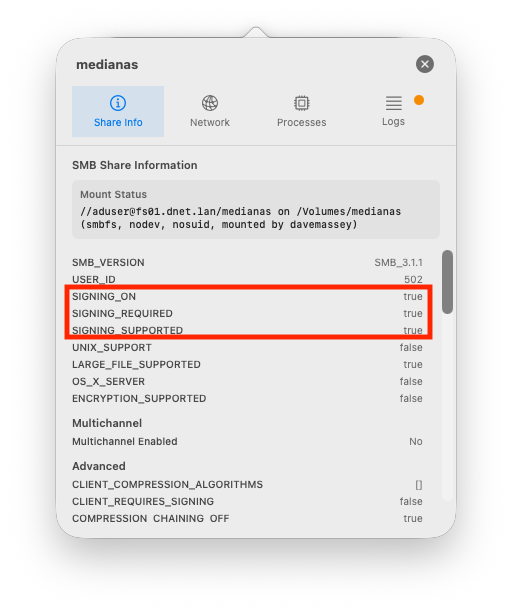
SIGNING_ON: true and SIGNING_REQUIRED: true —
the server is enforcing signing. Disabling it in Remount won't help.
Contact your server administrator about disabling the signing requirement.
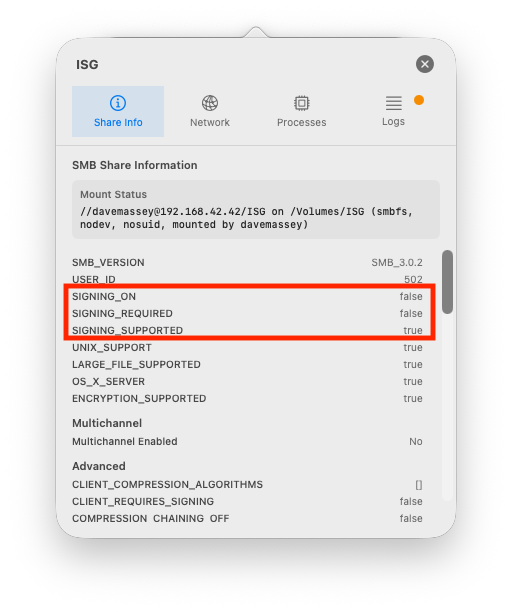
SIGNING_ON: false and SIGNING_REQUIRED: false —
signing is off. This connection has the best possible throughput for
the negotiated SMB version.
Your maximum file transfer speed is limited by the slowest link in the chain: your Mac's network interface, the cable or switch, and the server's interface and disk subsystem. Here are the theoretical maximums for common interface speeds:
| Network Interface | Link Speed | Theoretical Max | Realistic SMB |
|---|---|---|---|
| Wi-Fi 6 (802.11ax) | 1.2 Gbps | ~150 MB/s | 60–100 MB/s |
| 1 GbE (Gigabit Ethernet) | 1 Gbps | 125 MB/s | 100–112 MB/s |
| 2.5 GbE | 2.5 Gbps | 312 MB/s | 250–290 MB/s |
| 5 GbE | 5 Gbps | 625 MB/s | 500–580 MB/s |
| 10 GbE | 10 Gbps | 1,250 MB/s | 900–1,100 MB/s |
| 25 GbE | 25 Gbps | 3,125 MB/s | 2,000–2,800 MB/s |
How to check your link speed: Open System Settings > Network, select your interface, and look for the link speed. Alternatively, click the Network tab in Remount's share info dialog to see the interface and speed for each mounted share.
If your measured throughput is significantly below the "Realistic SMB" column, check for SMB signing (above), switch from Wi-Fi to wired Ethernet, and verify your server's disk subsystem isn't the bottleneck.
For rigorous performance testing, use ShareBench — our multi-stream benchmarking tool designed specifically for network storage in media workflows.
In Settings, enable "Don't read/write .DS_Store files on network shares." This prevents Finder from writing metadata to every folder you browse, reducing unnecessary round-trips. Requires logout or restart to take effect.
Multichannel can improve throughput when your Mac has multiple network paths to the server (e.g., two Ethernet NICs). If you only have one path, or one path is Wi-Fi, multichannel may actually hurt performance. Disable it in Settings if you're seeing inconsistent speeds.
When multichannel is enabled, macOS may use Wi-Fi as a secondary channel. Enable "Prefer wired connections" in Settings to prevent this.
Restricting to SMB 2/3 or SMB 3 only improves security and can avoid fallback to older, slower protocol versions. Most modern NAS devices support SMB 3.
Remount monitors your configured shares and reconnects them silently whenever they become available — on login, on wake, or when the network comes back. By default, Remount runs as a menu bar app and must be running to maintain mounts. Enable "Start at login" in Settings to keep Remount resident across restarts.
Credentials are stored using AES-256 encryption with a per-installation key, or optionally in the macOS Keychain. You can export your encryption key for backup. Per-share authentication supports domain accounts (DOMAIN\username), Kerberos, and guest access.
Each share has an info dialog with four tabs:
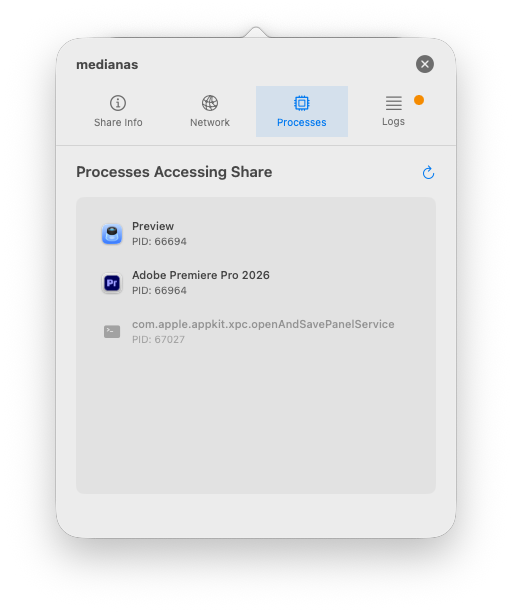
The Processes tab identifies which apps are holding a share open.
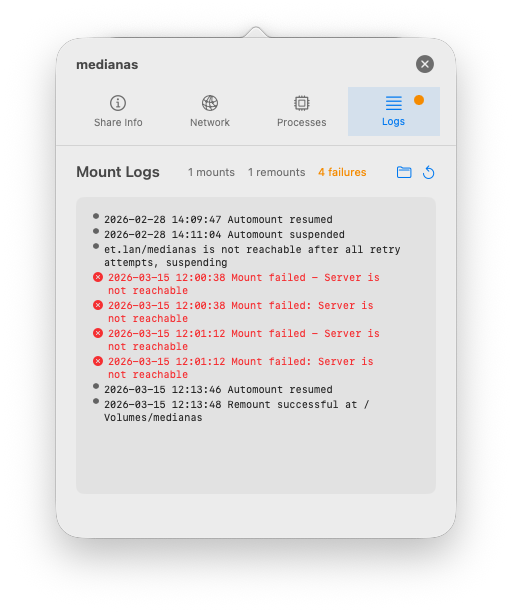
The Logs tab shows connection history, remount attempts, and failures.
Remount detects shares that macOS reports as mounted but are actually disconnected (stale mounts). These ghost mounts cause Finder hangs and broken file references. Remount can automatically clean them up and reconnect.
Export your full share configuration as an encrypted file for backup or deployment across machines. Supports MDM-compatible profiles for enterprise deployment.
Send a Wake-on-LAN magic packet to power on a sleeping NAS before attempting to mount.
Each share can use one of four authentication methods:
When set to Automatic, Remount tries its own stored credentials first. If no credentials are stored (or they are rejected), Remount hands off to macOS, which controls the remaining credential priority:
This is why leaving the username and password fields empty in Remount often "just works" — if you've previously connected to the same server in Finder and saved the password, macOS will use those stored credentials automatically. Similarly, if your Mac has valid Kerberos tickets (from Active Directory or MDM SSO), macOS will use those without any credentials needing to be stored.
There are two separate credential stores that can supply passwords for network shares:
Passwords saved by Finder or other apps (e.g., when you check "Remember this password" in the Connect to Server dialog). Remount cannot read or manage these directly, but macOS will use them when Automatic auth is selected and Remount doesn't supply its own credentials.
Credentials entered in Remount's share configuration are encrypted with AES-256-GCM using a per-installation key stored in the macOS Keychain (with Secure Enclave protection on Apple Silicon). These are completely separate from the system keychain and are only accessible to Remount.
When using Username/Password or Guest mode (as opposed to Automatic), authentication is explicit — Remount will not fall back to the system keychain or show a login prompt:
This deterministic behavior is useful in automated environments where you want mounts to either succeed with specific credentials or fail cleanly without interactive prompts.
Kerberos provides single sign-on (SSO) for environments with Active Directory or LDAP servers. Instead of sending passwords over the network, Kerberos uses time-limited tickets issued by a Key Distribution Center (KDC).
Remount monitors Kerberos tickets every 15 minutes and attempts automatic renewal when a ticket is within 60 minutes of expiry. However, there are limitations:
kinit)Each share has an Advanced Options panel accessible from the share edit dialog. These settings are applied per-share and override global defaults.
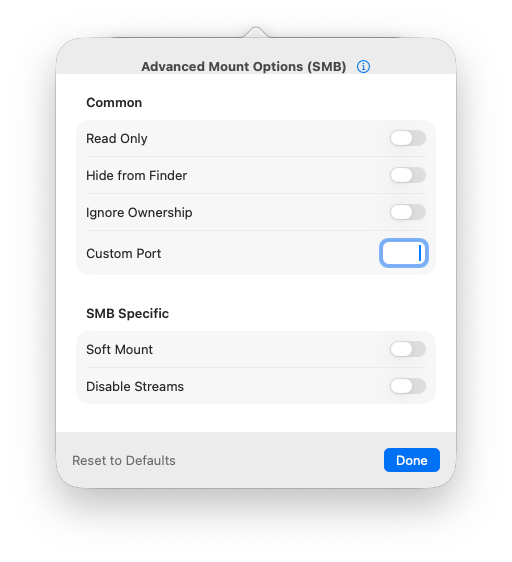
Advanced options for SMB shares
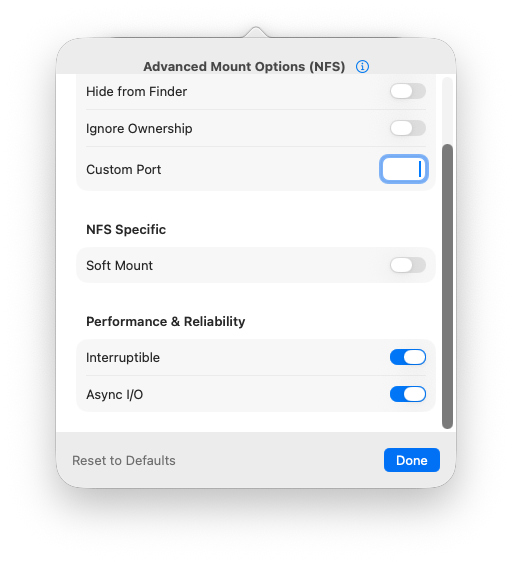
Advanced options for NFS shares
Several toggles were removed in 1.6.6 and 1.6.7 after integration tests confirmed they had no observable effect on current macOS: Soft Mount (SMB, NFS, AFP), Disable Streams (SMB), Interruptible (NFS), Async I/O (NFS), and Suppress Dialogs (WebDAV). The NetFS framework Remount uses to mount shares does not expose corresponding keys for these options, so they never reached the kernel regardless of the toggle state. Ignore Ownership and Read Only were also removed from the advanced options for WebDAV and FTP shares, where the underlying filesystems ignore those flags (FTP is always read-only on macOS; webdavfs does not honor MNT_IGNORE_OWNERSHIP).
Advanced users who need soft-mount semantics for SMB can set
soft=yes globally in /etc/nsmb.conf.
NFS-specific mount tuning (intr, async, resvport, timeo, retrans)
requires mount_nfs from the command line.
Remount provides a GUI for macOS's nsmb.conf file, which controls
system-wide SMB behavior. Changes require shares to be remounted to take effect.
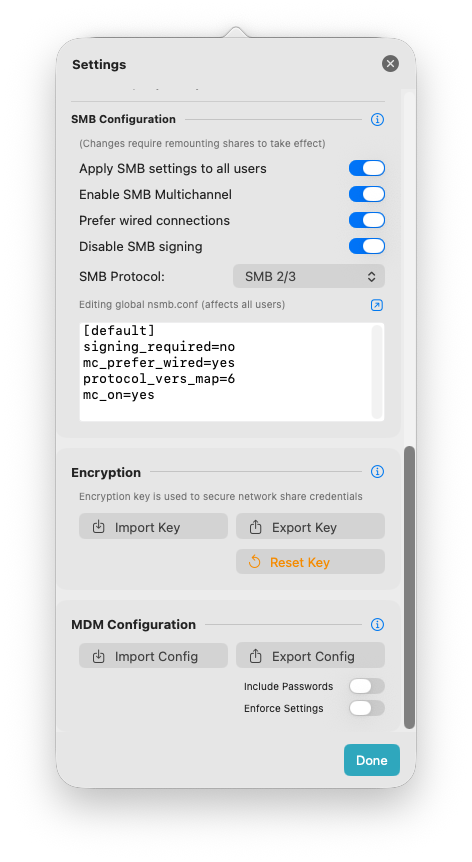
SMB configuration, encryption key management, and MDM export in Settings.
nsmb.conf globally instead of per-user. Requires administrator accessnsmb.conf. External changes are detected automaticallyRemount supports enterprise deployment through standard macOS MDM configuration profiles. You can export a complete configuration, push it to managed Macs, and optionally lock settings to prevent user modification.
.mobileconfig file
The exported profile uses the standard com.apple.ManagedClient.preferences
payload type with a Forced management level, ensuring it reapplies
on every MDM sync.
When a profile is deployed with Enforce Settings enabled
(allowUserEditing: false), Remount locks its UI:
For administrators who need to manually edit profile keys or build profiles
with a profile creation tool, here are the supported keys inside the
preferences dictionary:
| Key | Type | Description |
|---|---|---|
allowUserEditing |
Bool | Lock all settings when false |
networkShares |
Array | Configured shares (hostname, protocol, shareName, username, encryptedPassword, automount, advancedOptions) |
defaultMountBase |
String | Mount point base directory (default: /Volumes) |
startAtLogin |
Bool | Launch Remount at system login |
dontWriteDSStore |
Bool | Prevent .DS_Store on network volumes |
smbProtocolVersion |
String | "7" (SMB 1/2/3), "6" (SMB 2/3), "4" (SMB 3 only) |
useGlobalSmbConfig |
Bool | Use global vs. per-user nsmb.conf |
smbCustomSettings |
String | Raw nsmb.conf content |
overrideSystemParameters |
Bool | Enforce nsmb.conf and DS_Store settings over system defaults |
interfaceMode |
String | "menuBar" or "window" |
appearanceMode |
String | Light, Dark, or Auto |
fixMountPaths |
Bool | Auto-detect and fix stale mount points |
autoAddMountedShares |
Bool | Detect externally mounted shares |
kerberosRenewableEnabled |
Bool | Enable automatic Kerberos ticket renewal |
kerberosRenewLifetimeDays |
Int | Maximum renewable lifetime for Kerberos tickets (days) |
Remount uses the Sparkle framework
for automatic updates. Sparkle's update behaviour can be controlled via MDM
using standard keys at the app domain level
(app.daveco.remount), separate from the preferences
dictionary above:
| Key | Type | Default | Description |
|---|---|---|---|
SUEnableAutomaticChecks |
Bool | true |
Periodically check for updates in the background |
SUAutomaticallyUpdate |
Bool | false |
Install updates automatically without prompting the user |
SUScheduledCheckInterval |
Int | 86400 |
Seconds between automatic update checks (default: 24 hours) |
SUAllowsAutomaticUpdates |
Bool | true |
Set to false to prevent users from enabling automatic updates |
app.daveco.remount
with SUEnableAutomaticChecks set to false. Users will
still be able to check manually via the menu.
For Kerberos authentication to work seamlessly with Remount in a managed environment, the Mac needs a valid Kerberos ticket before Remount attempts to mount shares. The most reliable way to achieve this is with a modern MDM that handles SSO at the macOS login window:
These MDM solutions acquire a Kerberos TGT during user login, which is then available in the system ticket cache for Remount and other apps. This eliminates the need to store passwords in Remount for Kerberos shares.
Without MDM-managed SSO, a Mac bound to Active Directory will still receive Kerberos tickets automatically at login — but only while the Mac can reach the domain controller on the local network. This approach works for desktops on a corporate LAN but is not suited for laptops that travel outside that network, as tickets cannot be renewed once the KDC is unreachable.
For machines without AD binding or MDM SSO, Kerberos tickets must be acquired
manually (kinit user@REALM in Terminal) or by storing the username
and password in Remount so it can run kinit on your behalf.
ping hostname in TerminalMedia). For NFS, this is the export path (e.g., /volume1/shared)log show commands to reproduce the query — everything an admin needs to track down the root cause. The feature requires the helper tool; toggle it in Settings → Share Behavior → "Save diagnostic log when a share disconnects unexpectedly".If you're stuck, email hello@daveco.app with: